






Learn how to use Ollama step-by-step with this beginner-friendly guide. Perfect for first-time users exploring local AI models and simple setup instructions.
Ollama is an open-source application that brings together many large natural language models and allows you to use them all offline.
It is very common to use ChatGPT to search for different results on the web, although in many cases it is advisable to use a local assistant to access all the tools offline. 
One of the best tools to achieve this is Ollama, an open source application that allows users to try different large natural language models (LLMs) without having to access the internet.
In the case of others, such as OpenAI’s ChatGPT and Google’s Gemini, you will have to access the online service, unless you configure them locally, something more complicated and not suitable for all computers.
Unlike those mentioned, Ollama allows you to directly choose the model you prefer from the same conversation with the assistant, with others that are not exclusively GPT but also Gemma, Mistral, or DeepSeek.
The best part is, you don’t have to sign up or provide your email—this application works fully with all models available, so long as you don’t require internet search features.
Here’s how you can use Ollama, an open-source tool, to create your own ChatGPT assistant.

How to create an offline ChatGPT with Ollama
To start using Ollama, you simply have to access its official website from this link and choose your computer’s operating system, which includes macOS, Windows, and Linux.
The first thing to keep in mind is that at no time will you be asked to create an account, although you can use it with a connection to a profile associated with your email to browse. Here is the process to get the GPT model offline.
One of the most important things to take into account is the complete list of models available at Ollama to know which one best suits what you want; in case you need it to remember your conversations, you will have to change it in the settings.
This section will allow the LLM to gain much more context, especially if you need to use it as a completely personal assistant.
Something to keep in mind is that the Ollama app itself weighs just over 1 gigabyte, to which you have to add a lot more available storage if you need to run an LLM locally.
For example, in the case of the one I have used, the gpt-oss:120b model, one of the most powerful you can try, and that accumulates 3.3 million downloads, the total weight is 65 gigabytes. In such a case, you always have to check the characteristics of the model you are going to test.
Ollama’s own website has a complete list of all models, with the options available according to the number of parameters of each LLM, as well as the last update date, and the possibility of using it online.

In case you need the most powerful model of GPT, like the one I mentioned, you simply have to access its page within the list and copy the first message that appears on the page, with the direct access of the copy-to-clipboard symbol, and paste it into Ollama.
From here, the tool will start downloading the full language to make it work locally, so you’ll need to have the space it takes up, or else you won’t be able to use it.
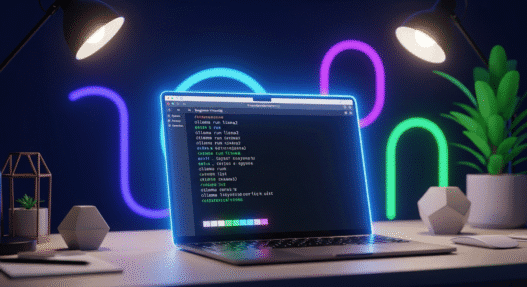
This is the easiest way to get a model used, although it is best to open the command from your operating system’s terminal with the same message that Ollama shares for you to copy and paste directly. With this, you can also access cloud or on-premise models.
As you can see, Ollama is a very powerful tool that brings together many LLMs, so it can be a great companion if you usually try different ones and want to have them all in the same place, also available offline.
FAQ from Content
-
Q1. What is Ollama and how does it work?
A1. Ollama is a tool that lets you download and run AI models locally on your computer. It works by using simple commands in the terminal to load, manage, and interact with supported AI models directly on your device.
-
Q2. How do I install Ollama on my computer?
A2. To install Ollama, you download the official installer for your operating system from the Ollama website and follow the setup steps. After installation, you can run the
ollamaCommand in your terminal to verify it’s ready. -
Q3. How do I use Ollama to run local AI models?
A3. You can run local AI models in Ollama by typing a command like
ollama run modelnamein your terminal. This loads the model and lets you start interacting with it immediately.
Be a part of over Success!
- Stay ahead of the curve with the latest tech trends, gadgets, and innovations! Newsletter
- Share your feedback or connect with me on LinkedIn — I’d love to hear from you!