




Discover the essential features that make video editors suitable for low-spec laptops. Learn what to look for in lightweight editing software.
Table of Contents
If you have a low-spec laptop (limited RAM / older CPU / modest storage), you don’t need to give up video editing. Several lightweight and efficient video editors are well-suited for low-end machines. Here are some of the best — grouped by use-case/user type:

Shotcut
Looking for a powerful video editor that won’t slow down your budget laptop? Shotcut is a free, open source, cross-platform video editor for Windows, Mac, and Linux. If you’re working with an older or underpowered machine, Shotcut stands out as an excellent choice that delivers professional-grade editing without demanding expensive hardware. 
Main Features
- Let’s you do timeline-based editing: cuts, trims, transitions, audio/video filters, text, etc.
- Reasonable system requirements: works on 4 GB RAM (though for HD, 8 GB may be recommended) and modest CPU/GPU settings.
Best for: Free and flexible editing on older or modest laptops.

VSDC Free Video Editor (Windows)
If you’re looking for a powerful yet lightweight video editor that won’t drain your low-spec laptop’s resources, VSDC Free Video Editor is an excellent choice for Windows users. This free, feature-rich video editing software is designed specifically for creators working with outdated or underpowered computers. With an installation file under 100MB and the ability to run smoothly on just 2GB of RAM, VSDC proves that you don’t need expensive hardware to create professional-quality videos.
Main Features
- Designed with lightweight PCs in mind. Even 2 GB RAM + 500 MB free disk space is often enough.
- Supports non-linear editing (NLE), basic effects, video/audio editing, format conversions, and basic screen recording.
Best for: Windows users with very old or weak laptops needing a lightweight editor.

OpenShot Video Editor
If you’re looking for a powerful, free video editor that works across Windows, Mac, and Linux without demanding expensive hardware, OpenShot is an excellent choice. As an award-winning, open-source video editor, OpenShot delivers professional-grade editing capabilities while remaining accessible to users with low-spec laptops. Whether you’re a beginner creating social media content or someone working on a tight budget, OpenShot proves that you don’t need expensive software or powerful hardware to edit quality videos.
Main Features
- Free and open-source; works on Windows, macOS, and Linux.
- Supports multi-layer audio/video tracks, transitions, effects, and basic non-linear editing.
- System requirements are modest: ~4 GB RAM recommended; the installation footprint is small (~500 MB-1 GB).
Best for: Beginners who want simple editing (cuts, trims, basic effects) without heavy hardware demands.

Kdenlive
Kdenlive stands out among free video editors for its remarkable ability to deliver professional features while maintaining remarkable resource efficiency. The software is specifically designed to work well even on modest hardware, making it one of the best video editors for low-spec laptops available today.
For standard definition projects, a 1.2 GHz CPU and 4 GB of RAM will suffice, and Kdenlive’s resource efficiency means you can still edit HD videos smoothly on modest hardware. This accessibility makes Kdenlive an ideal choice for users with older computers or tight budgets.
Main Features
- Free, open-source, and available for Windows, Linux, and macOS.
- Offers a robust feature set: non-linear editing, multiple tracks, effects, and transitions—suitable for more complex projects.
- Works acceptably on moderately low-spec machines (though cutting-edge performance may need better hardware).
Best for: Users comfortable with a more advanced editing environment but still needing a free tool that can run on modest hardware.
Which to pick — depending on your needs
| Your Use Case & Hardware | Recommended Editor(s) |
|---|---|
| Very old or weak Windows laptop (≈2–4 GB RAM), simple edits (cuts, trims) | VSDC Free Video Editor, OpenShot |
| Low-to-moderate spec laptop (4–8 GB RAM), doing multi-clip edits / basic effects | Shotcut, Kdenlive |
| Need free editor with good flexibility & moderate effects work | Shotcut, Kdenlive |
| Want minimal learning curve, simple UI, easy to start | OpenShot, VSDC |
Since you run a blog and may occasionally need to edit tutorial videos/marketing clips, I’d recommend Shotcut or Kdenlive for you. They strike a good balance between flexibility and resource use. If you mostly do simple cuts and basic edits, VSDC (on a Windows laptop) is also a safe bet.
Frequently Asked Questions
Q1. What makes a video editor suitable for low-spec laptops?
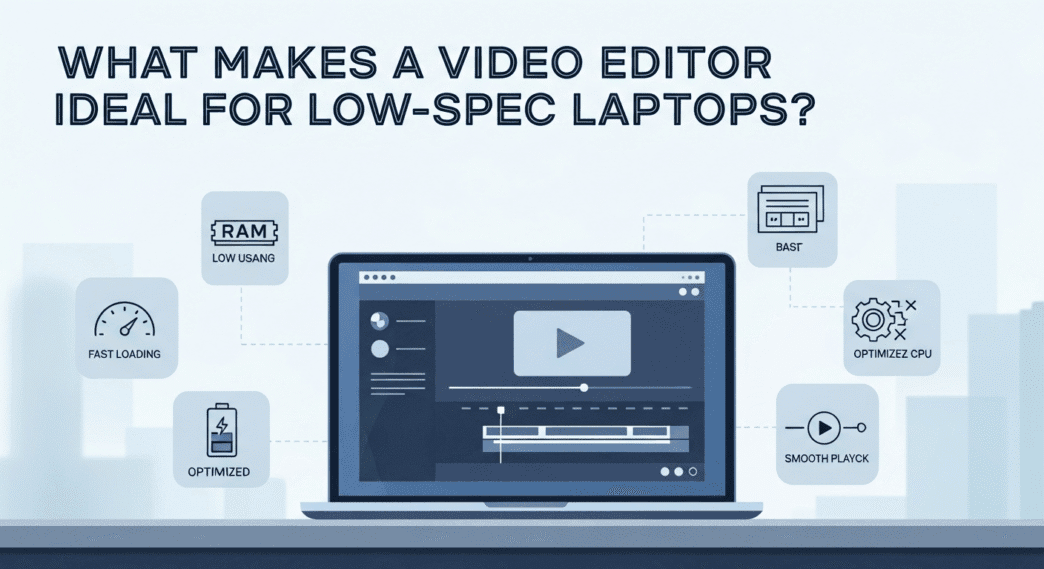
A1. A video editor is suitable for low-spec laptops when it has minimal system requirements, a small installation file size, efficient resource usage, and native file format support without requiring conversions. The best editors for low-spec laptops run smoothly with 2-4GB of RAM, require less than 500MB of disk space for installation, use multi-core processing efficiently, and include optimization features like preview scaling and proxy editing modes that reduce processing load during editing.
Q2. How do you choose the right video editor for a low-spec laptop?
A2. To choose the right video editor for your low-spec laptop, follow these steps: First, check your computer’s specifications (CPU cores, RAM, storage space) and compare them against the editor’s minimum requirements. Second, prioritize free or low-cost options like Shotcut, VSDC, OpenShot, or Kdenlive. Third, verify the editor supports your operating system (Windows, Mac, or Linux). Fourth, ensure it handles the video formats you work with natively. Finally, test the software with your actual projects to confirm it performs smoothly without lag or crashes.
Be a part of over Success!
- Share your feedback or connect with me on LinkedIn — I’d love to hear from you!
- Stay ahead of the curve with the latest tech trends, gadgets, and innovations! Newsletter.
My new podcast episode is live! I’d love for you to listen to it.