





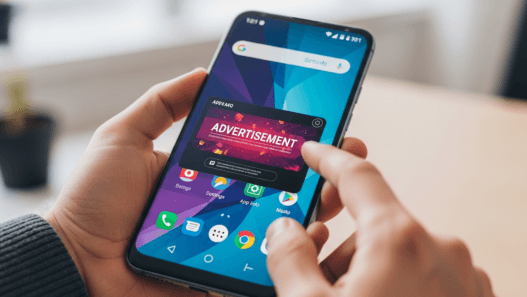

Block Ads on Android easily and enjoy a cleaner, faster, and distraction-free mobile browsing experience with simple and effective methods.
Table of Contents
Default Android ads are not only a nuisance, but they also affect your device’s performance, but you can remove them for good.
Surely you have experienced performance problems on your Android phone, and yes, it is possible that it is due to the fact that there are many apps consuming too many resources, there are silent malwares that slow down the system, and there are bad habits that cause overheating.
But what if I told you that most of these errors come from excessive advertising? Let’s take as an example Xiaomi phones with HyperOS (formerly MIUI), which are incredible quality-price devices, but have been highly criticized for ads in the interface and apps.
Not only smartphones from that brand, but also Android smartphones without a layer of customization—advertising is everywhere. In addition to being annoying, it is something that definitely affects your experience, but whatever smartphone you have, here you are going to learn how to get rid of it.

How to remove ads on your Android phone
You go to the gallery, and an ad appears; you go to the music app, and there is also advertising. Everything becomes a problem because it takes time and puts a lot of obstacles in the experience, when in reality you should not see these ads if you are using native apps.
Beyond being annoying, all these processes consume RAM in the background. At the same time, it can be a problem for security and privacy, so it is best to disable them from the first day you have your mobile phone or just if you are learning how harmful ads are.
If it is a Xiaomi, the first step to achieve this is to disable the MSA service, since the advertising usually comes from here. Then, you need to head to Settings> Apps and search for “MSA” to tap the three-dot icon and choose All Permissions. It revokes every privilege you have.
Now go to Fingerprints, Facial Data, and Screen Lock, and then choose Privacy>Advertising Services and disable Personalized Ads. From the settings of each app, such as My Video, My Music, and others, there is always an option to disable ads.
On Android at a general level, you must go to Settings> Google> Ads> Remove Advertising ID. Go back to Settings, but now go to Connection & Share > Private DNS and put “dns.adguard.com“.
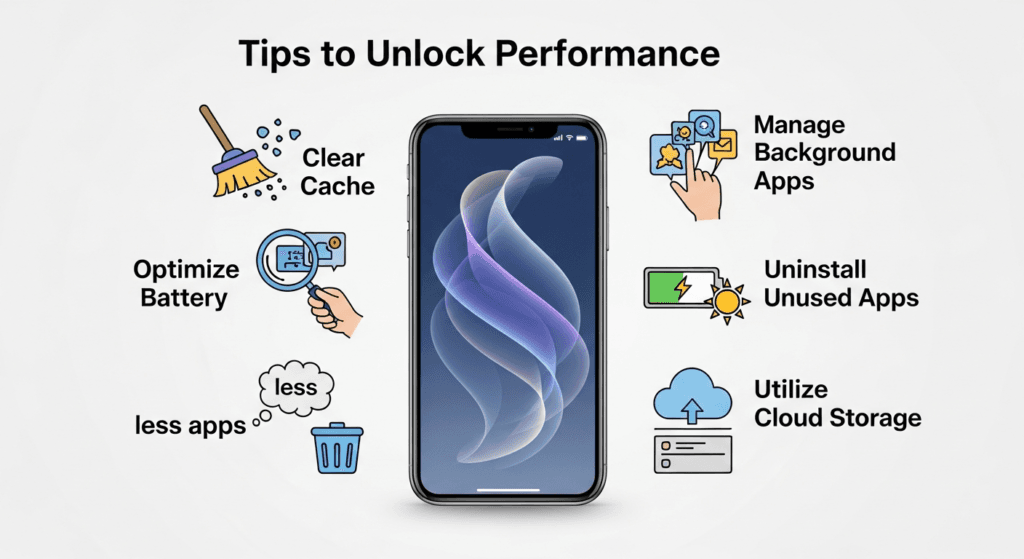
Other things you should do to unlock performance on your smartphone
At this point, advertising should no longer be an inconvenience for you, but there are also other things you could do to improve performance and save battery life on your phone.
For example, the appropriate thing to do would be to manage the automatic launch of applications well, and in the Battery section, you should be able to see the Battery Usage Details, where the percentage of battery consumed is shown.
The ones that drain the most energy are usually social networks, but right from the App Info, you have the possibility to use them as a battery saver. Doing data cleaning and cache maintenance also helps a lot.
Couple this with restricting notifications and removing ads, and you’re sure to see great benefits in the experience. Goodbye to all those annoying ads and hello to the new efficiency improvement.
FAQ from Content
Q1. How do I block ads on Android?
A1. You can block ads on Android by enabling ad blocking in your browser, installing a trusted ad-blocker app, and turning off personalized ads in your Google account settings.
Q2. How do I stop pop-up ads on my Android phone?
A2. To stop pop-up ads, disable pop-ups in your browser settings, remove suspicious apps, and turn off notifications from unknown or spammy apps.
Q3. How do I remove unwanted ads from my Android phone?
A3. Remove unwanted ads by uninstalling recently added or unknown apps, resetting app permissions, and disabling apps that show ads over other apps.
Be a part of over Success!
- Share your feedback or connect with me on LinkedIn — I’d love to hear from you!
- Stay ahead of the curve with the latest tech trends, gadgets, and innovations! Newsletter.