





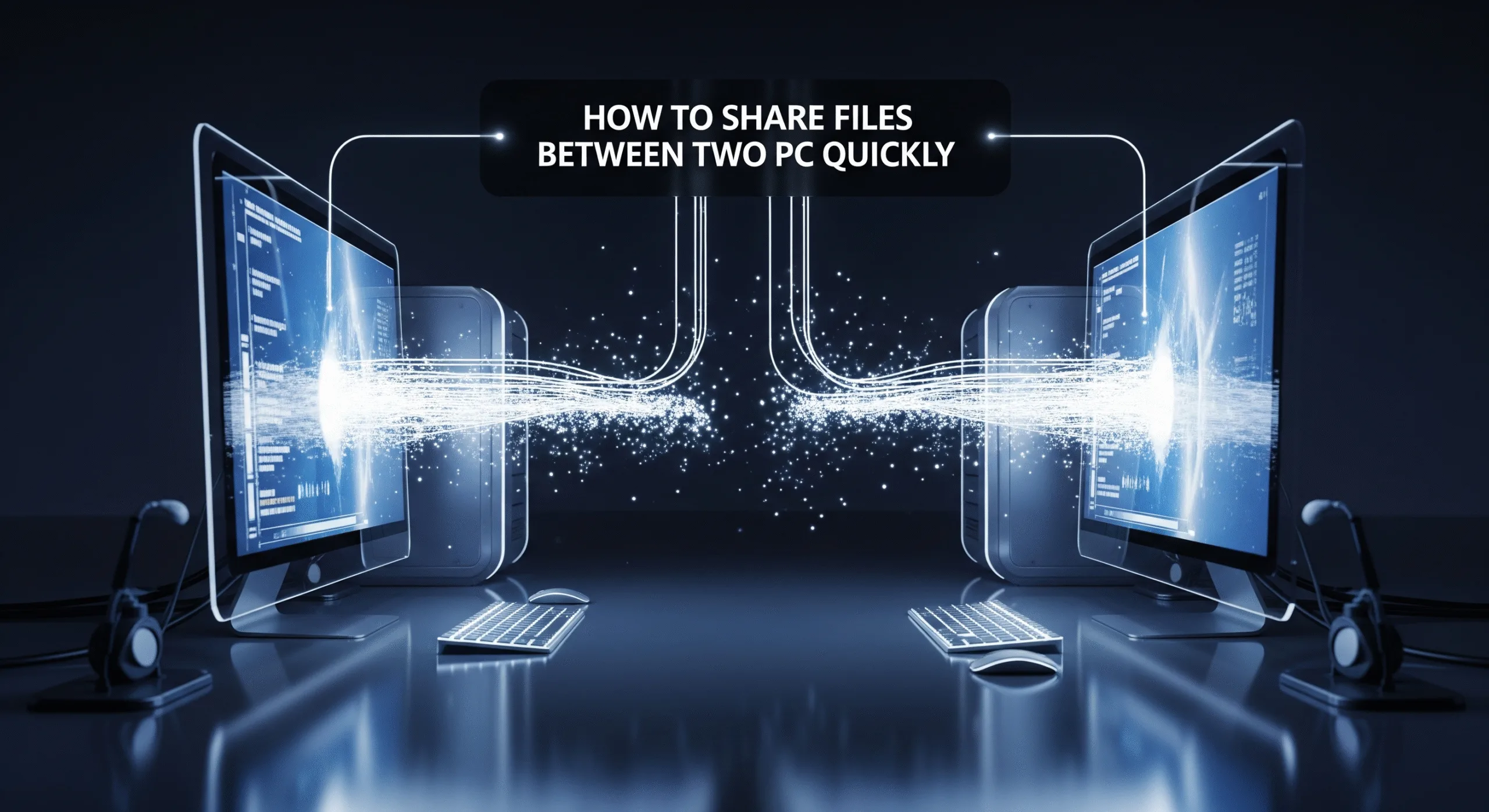
Transferring files between PCs is a task that can be presented to us in several situations. For example, when we buy a new computer and we want to use the data from the previous one, be it documents, photographs, videos, music, or any type of file.
Table of Contents
Depending on what we need to do and the means we have, there are several methods to make this type of transfer, both directly between PCs and through an intermediate medium, external devices, and finally using cloud storage services. We review them.
How to Transfer Files Between PCs

1. Direct Cable
It’s the simplest, most convenient, and fastest way to transfer files from one PC to another fast PC file transfer. There are two basic ways to do this: 
A USB jumper cable. The industry offers cabling to connect Windows computers via USB, from Mac to Mac using USB/Thunderbolt ports, or even between them. Windows computers will automatically detect the connection, and you just need to install a small built-in program to sync them and transfer files as if it were a typical explorer. On Mac, using Thunderbolt ports, you can connect two computers and easily transfer files by dragging them between them.
A crossover network cable. A lesser-known alternative among the general public is to use a crossover Ethernet cable that will allow us to create a local area network without the need for a router or modem and share files between computers regardless of their operating system. It is an ideal method when mixing platforms, since we can connect personal computers with Windows, macOS, or Linux indistinctly.

2. External Storage
Using an external storage medium is probably the most used way to copy files from one PC to another, especially when handling large files. The disadvantage compared to the previous ones is that you can’t copy files between two PCs directly, and we have to use an added and intermediate device to do it in two steps.
The advantage is that they are widespread, inexpensive, and not only used to transfer data between PCs but also to safeguard data and backups or to install operating systems or other applications once they have become self-booting.
If optical media are used less and less due to their failures and limited capacity, there is everything you want from the rest. You can use a large-capacity external drive (hard drive or SSD) connected to a port as compatible as USB, a microSD (or SD) card, as well as a pen drive that you can carry in a pocket. In any case, the task is simple. You simply connect the external media to the first PC, copy the data to be transferred to it, remove the drive, and place it on the second PC to copy the data.
In addition to the above media, you can also use wireless storage drives to transfer files without the need for wiring. Another great possibility is NAS, devices that add storage and connectivity and can also be used to transfer files of any size between PCs, from anywhere in the world and regardless of the operating system you use.
3. Local Network
This method takes advantage of the fact that all computers included in a local network can see each other once configured. Operating systems have built-in options for setting up home networks between devices and can easily transfer folders and files from the file explorer itself. It works over wired LAN networks and also over wireless networks connected via Wi-Fi.
In addition to the operating system tools that can be used, there are applications such as those specialized in file transfers (FTP) that are ideal for moving data on networks, both Internet and local.
If you don’t control that kind of network management, there is third-party software to copy files of any size between two PCs. In this group we have to highlight Send Anywhere. A fantastic and free application that only needs both computers to be connected to the same Wi-Fi network. It is available for Windows, Mac, and Linux, and also offers an extension for Chrome OS. It also has versions for mobiles, iOS or Android.

4. HDD or SSD
This method is recommended especially when we are looking to replace the storage drive, but we can also use it to move data from one PC to another PC. Here we have several possibilities. One possibility is to disassemble the storage solution (hard drive or SSD) from the old computer and mount it on the new one. Something that is not always possible due to its format or an installation that is more complicated.
That is why in these cases we recommend connecting the drives externally. In fact, it is a natural method to take advantage of the old hard drives that we are replacing with the solid-state drives that today completely occupy the consumer storage market. We can do this using three effective methods:
Cable. A simple eSATA cable (external SATA) or a SATA-to-USB interface adapter. They are very cheap and effective and are suitable for hard drives or SSDs.
Housings. Another possibility, perhaps the most aesthetic, is to use a case-chassis where we will place the hard drive or SSD. It is simply a matter of removing a few screws because the circuitry is already included inside. We would use it to copy files between two PCs, and it would later be used to save data and backups or to install software from it.
Dock. Somewhat more expensive than a simple cable, but more versatile and aesthetic to place on a desk, is a docking station. Its use is as simple as ‘pinching’ the hard drives in their enclosures and connecting the base to a PC, desktop, or laptop. They offer multiple bays, support different interfaces, and work on different platforms.
5. Cloud
The ‘cloud’ is here to stay, and this includes the servers that are installed in large data centers that provide us with computing, video, music, software, or games on demand. They also provide data storage and it is another very convenient solution to use as a medium that can be accessed by any type of PC.
It’s as simple as uploading files to the cloud from your old computer and downloading them to your new one. If you have a good Internet connection and both computers have synchronized the folders locally, the upload/download will be carried out simultaneously, gaining speed.
The problem with this method is when the amount of data to be moved is massive, tens/hundreds of ‘Gigabytes’, we must be subscribed to a paid service that offers us enough capacity, because the free ones are usually not very generous in the handling of large files.
FAQ from Content
-
Q1. What is the fastest way to transfer files directly between two PCs?
A1. The fastest direct method is using a USB jumper cable for Windows or Thunderbolt for Mac, as these allow quick synchronization and file transfer.
-
Q2. How can I transfer large files without connecting the PCs directly?
A2. You can use external storage devices like hard drives, SSDs, or pen drives. Simply copy the files to the device from one PC, then connect it to the other PC to transfer.
-
Q3. Can I share files between PCs on different operating systems?
A3. Yes. A crossover Ethernet cable or NAS devices allow sharing between Windows, macOS, and Linux PCs without needing a router.
Be a part of over Success!
- Stay ahead of the curve with the latest tech trends, gadgets, and innovations! 🚀🔗Newsletter
- Follow me on Medium for more insights ⭐
- ✍️ Write for Us on Technoluting (Medium)
- 💬 Share your feedback or connect with me on LinkedIn — I’d love to hear from you!