





Improve your gaming experience! Learn how to reset the graphics driver in Windows with a simple keyboard shortcut to stop lags and crashes.
Table of Contents
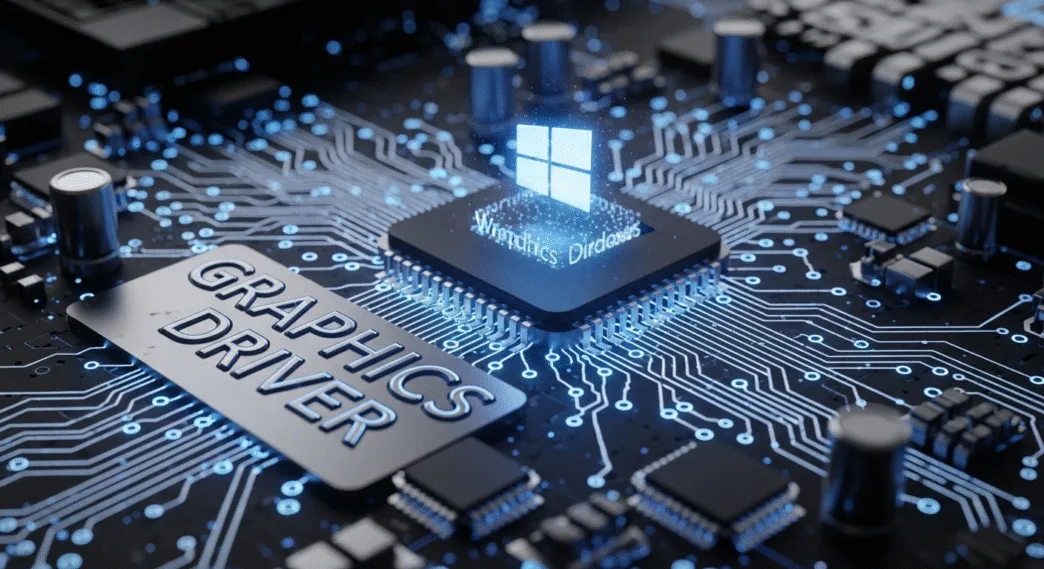
Keyboard shortcuts are as old as the operating systems themselves and have remained despite the constant improvements of graphical interfaces, including the advent of multi-touch technologies. They are very useful when performing certain actions on the system or applications, but they also serve as a troubleshooting method, and as an example, today we will remind you how to reset the graphics driver in Windows.

4GB DDR4 64-bit HDCP Support DirectX 12 DP/HDMI Single Fan OC Graphics Card (GT 1030 4GD4 LP OC) 
Windows today is a monstrous code full of services and applications and also drivers to support a gigantic hardware ecosystem. Its very large market share has its benefits (for Microsoft), but at the same time it demands no less substantial support to solve the failures that continue to arrive in the form of crashes, reboots, or death screens. The less serious ones can be solved quickly without having to adopt more extreme measures.
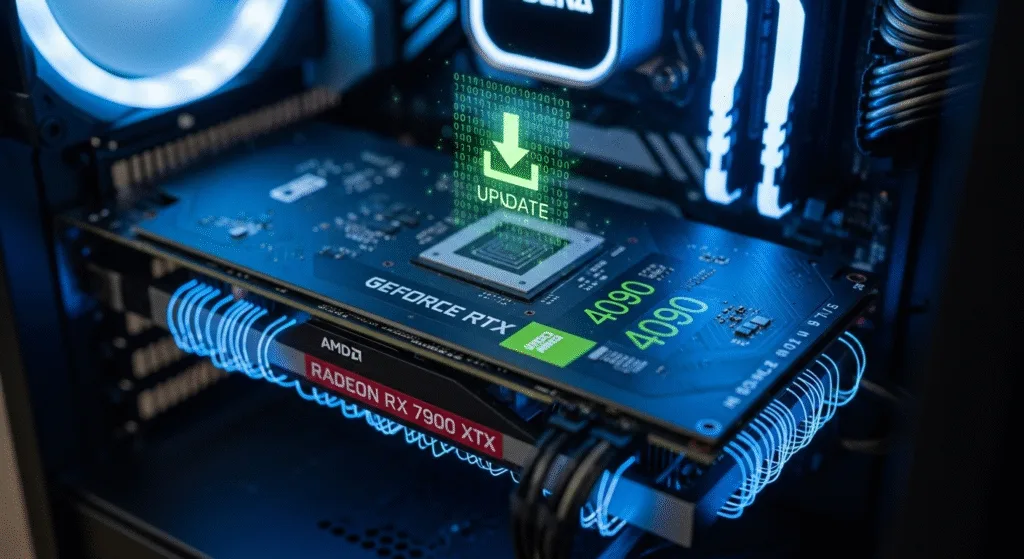
How to Reset the Graphics Driver in Windows
Keyboard shortcuts, those combinations of two or more keys that help us operate the interface or applications, are also used for other troubleshooting uses. As an example, one of the best known is ‘Control + Alt + Delete,’ which allows us to access the task manager to close an application that is giving us problems or shut down or restart the computer.
There is another lesser-known shortcut that allows you to restart the graphics driver. In case of graphics subsystem problems running games or applications or crashes on the desktop, try it because it can return the system to a healthy working state. It is activated by pressing four keys:
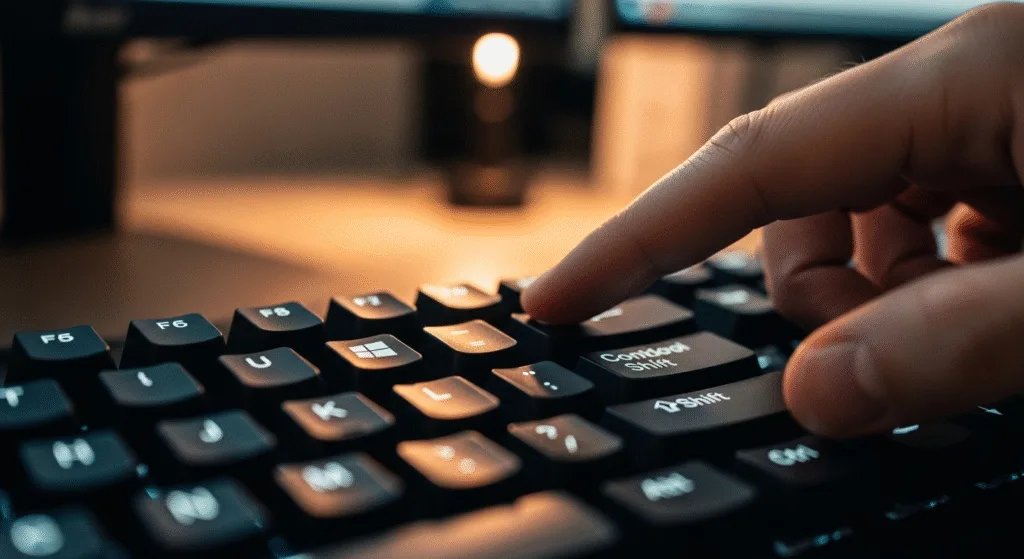
“Windows + Control + Shift + B”
You’ll check if it worked because the screen will go blank for a moment and the computer will beep. After that, the system will work properly and will return to the same place where it was blocked without having to restart the application, game or having to turn the computer off and on.
There are no guarantees that this keyboard shortcut will solve all the crashes in the graphics section, and if they are serious, the shortcut will not solve it, and you will surely need to update or install the drivers again, these pieces of software that you will also know as drivers are essential for the support of the hardware but also frequently problematic for the operation of the operating system. But it doesn’t hurt to try this keyboard shortcut.
-
Q1: How do I reset the graphics driver in Windows?
A1: Press Windows + Ctrl + Shift + B simultaneously to reset the graphics driver instantly without restarting your PC.
-
Q2: Will resetting the graphics driver fix gaming lags?
A2: Yes, resetting the graphics driver can resolve temporary crashes, freezes, and lag issues, improving game performance.
-
Q3: Do I lose my unsaved game progress when resetting the graphics driver?
A3: No, resetting the graphics driver does not close running applications, but any unsaved game progress may be affected by existing glitches.
Be a part of over Success!
- Stay ahead of the curve with the latest tech trends, gadgets, and innovations! Newsletter
- Follow me on Medium for more insights
- Write for Us on Technoluting (Medium)
Disclaimer : Some links in this article are affiliate links. We may earn a small commission at no extra cost to you. Thank you for supporting us!